AI Code Review on GitHub and GitLab: From Install to Merge Gate
Set up AI code review on GitHub and GitLab, test the first review, add a safe merge gate, fix common setup errors, and plan a rollback.
 Axiom Studio November 9, 2026 10 min read
On this page
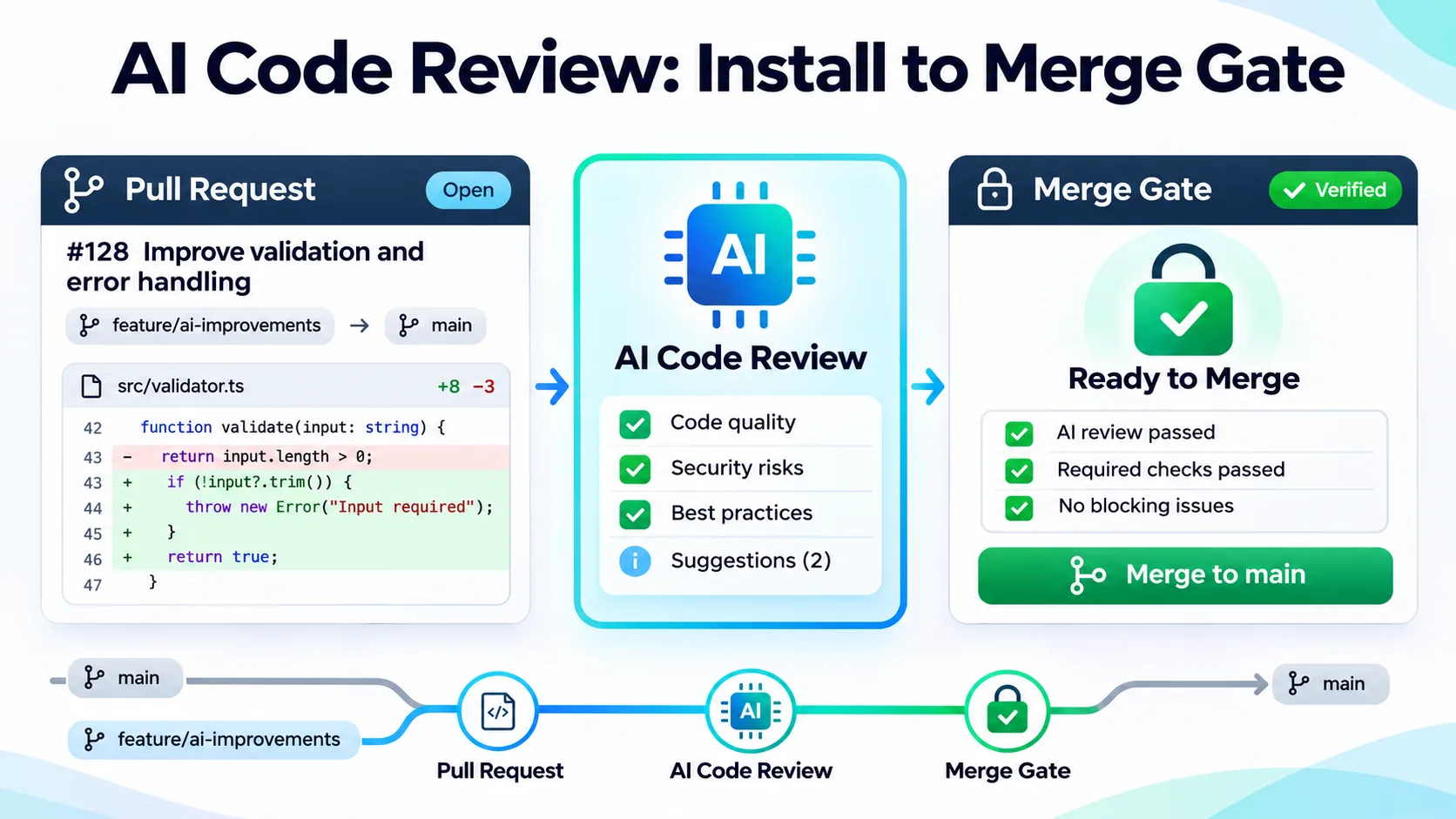
Setting up AI code review on GitHub or GitLab as a safe merge gate takes five things: repository access, an isolated review runner, a clear trigger, a required check, and a safe way to turn the gate off. An app install alone still lets the team merge while the review is running, failed, or checking an old commit.
This guide uses Vera, the AI code review agent in VibeFlow, as the main example. Vera is free forever with unlimited users and reviews, and supports GitHub, GitLab, Bitbucket, and Azure DevOps Repos.
The detailed merge-gate guide currently documents the GitHub check flow. For GitLab, this article pairs verified Vera support with GitLab’s own approval and external status-check controls. Confirm the exact check name in a test merge request before you make it required.
What a good merge gate must prove
A good gate answers four questions:
- Was the right repository and branch reviewed?
- Was the latest commit reviewed?
- Did the review finish without open blockers?
- Will a new push make the old result stale?
If any answer is unclear, do not block the whole team yet. Keep the reviewer in comment-only mode until the flow is stable. For how a reviewer gathers that evidence, see the anatomy of an AI code review agent.
The setup in one view
---
title: From install to merge gate in four phases
---
flowchart LR
    subgraph C[1 · Connect]
        direction TB
        C1[Link repository] --> C2[Least-privilege<br/>access] --> C3[Turn on PR / MR<br/>review]
    end
    subgraph P[2 · Prove]
        direction TB
        P1[Start isolated<br/>runner] --> P2[Open small<br/>test change] --> P3[Run first review<br/>by hand] --> P4[Fix a blocker<br/>and re-review]
    end
    subgraph E[3 · Enforce]
        direction TB
        E1[Add required<br/>check] --> E2[Test failure,<br/>new push, outage]
    end
    subgraph R[4 · Recover]
        direction TB
        R1[Written<br/>rollback plan]
    end
    C --> P --> E --> R
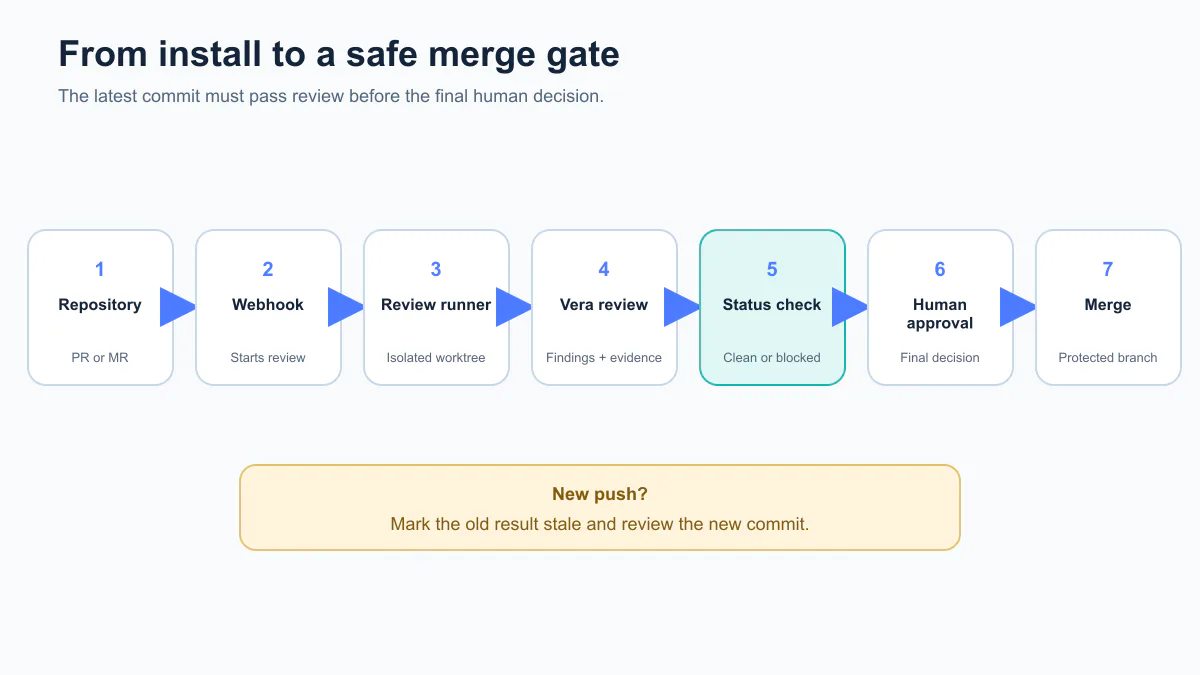
Connect with least privilege, prove the flow by hand on a small test change, enforce the check only after testing a failure, a new push, and a runner outage, and write down the rollback steps.
Figure — A safe merge gate ties the review result to the latest commit and keeps human approval in the release path.
Step 1: Connect the repository
Start in VibeFlow project settings. Link the source-control account and the test repository.
| Platform | How to connect | What to check |
|---|---|---|
| GitHub | Link through the organization’s GitHub App, then turn on Enable PR reviews for the repository. Only a project manager can change review settings. | The repository shows as linked and review is on. |
| GitLab | Link through the supported source-control integration, using a test project first. | The integration can read the merge request, post review results, and report a status. Do not assume the GitHub check name carries over. |
Use the smallest access scope that works. A reviewer needs to read the change and post a result. A repair agent may need write access to the pull request branch. Do not grant write access for a read-only review.
Step 2: Run Vera on a safe review runner
Vera reviews code on a runner: a machine or container that you control. The current guide says each review starts a fresh Vera session in a disposable worktree, removed after the review. Vera does not use the developer’s normal checkout.
This is still powerful access. Reviewed code can contain scripts, hooks, or instruction files, and a review may run commands to check a finding. Put the runner on a dedicated machine or container account, not a personal laptop that holds broad credentials.
Start Vera in the VibeFlow CLI
- Start a new session.
- Choose the repository and project.
- Select Vera · Code Reviewer.
- Add a coding role only if needed. Add one when you want a separate agent to repair confirmed blockers.
- Pick the provider, branch, and worktree.
- Keep the session online. Vera claims review work while online. No model runs while Vera is idle.
Step 3: Run the first review
For GitHub, open the pull request in VibeFlow and select Review this PR. The request waits until an eligible runner claims it.
Vera can post a summary comment and a check run. The GitHub check is named VibeFlow review / <base branch>. It succeeds only when the current revision is clean. It fails while blockers remain. It asks for action when review is paused, disabled, closed, or needs a person.
| Review state on the current revision | VibeFlow review / main check |
Can it merge through the gate? |
|---|---|---|
| Clean, no open blockers | ✅ Succeeds | Yes, if CI and human approval also pass |
| Blockers remain | ❌ Fails | No |
| Paused, disabled, closed, or needs a person | ⚠️ Asks for action | No, until someone acts |
For GitLab, open the merge request and run the review through the connected flow. Confirm that the result is tied to the current commit, open blockers are clear, and a status or approval control can stop the merge.
If one is missing, keep the setup in comment-only mode and record the gap. The current public Vera guide does not give the same step-by-step GitLab gate instructions as it gives for GitHub.
Step 4: Fix a blocker and verify again
A comment is not proof that a fix worked. Vera can turn unresolved blockers into VibeFlow issues. A human can fix them, or, if automatic repairs are allowed, a Developer, Architect, or Principal Engineer session can claim the repair batch and push a fix to the same pull request.
---
title: The fix-and-verify loop
---
flowchart TD
    A[Fresh Vera review<br/>of latest commit] --> B{Open blockers?}
    B -- No --> C[Check passes]
    B -- Yes --> D[Blockers filed<br/>as issues]
    D --> E[Human or repair<br/>agent pushes fix]
    E --> F{Rounds left?}
    F -- Yes --> A
    F -- No --> G[A person decides<br/>the next step]
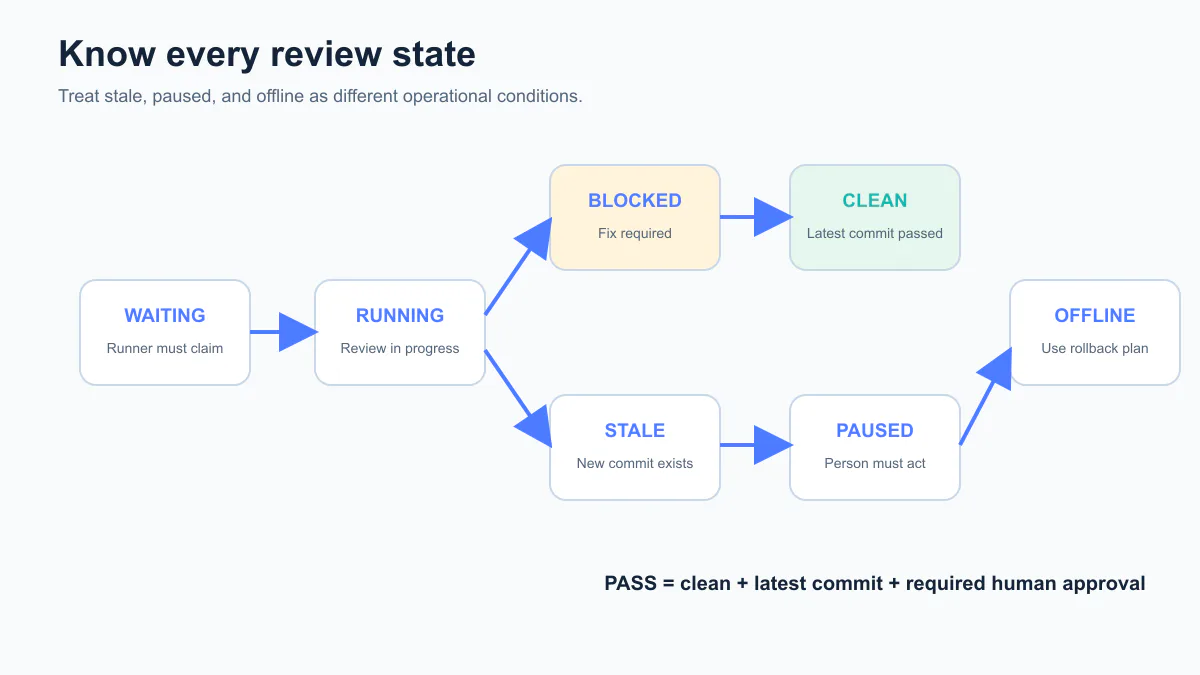
Vera does not edit the code itself: a finding closes only after a fresh Vera review verifies the fix on the new commit, and a person decides when the round budget runs out.
Set a round budget before you start. The current default is three review rounds. A team can choose from one to twenty. More rounds may help a hard change, but they also add review time and model work.
Figure — Only a clean result for the latest commit should allow the gate to pass.
Step 5: Add the GitHub merge gate
Do this only after the manual test passes. Configure it in GitHub branch protection or a repository ruleset.
Require the AI review on GitHub
- Protect the target branch, such as
main. - Require status checks before merging.
- Select the review check. Pick
VibeFlow review / main, or the check shown for your real base branch. - Set the source. Choose the VibeFlow GitHub App.
- Keep normal CI checks required.
- Decide on up-to-date branches. Choose whether the branch must be current before merge.
- Test with a new pull request.
GitHub’s official branch-protection guide says required status checks must pass before a pull request can merge. It can also require human approvals and dismiss old approvals when new commits arrive.
Do not use the AI check as the only gate. Keep tests, security scans, code-owner review, and required human approval where the risk needs them.
Step 6: Add a GitLab merge gate
GitLab has two control types that matter here:
- Approval rules: People or groups must approve before merge.
- External status checks: An outside service reports whether the merge request may pass.
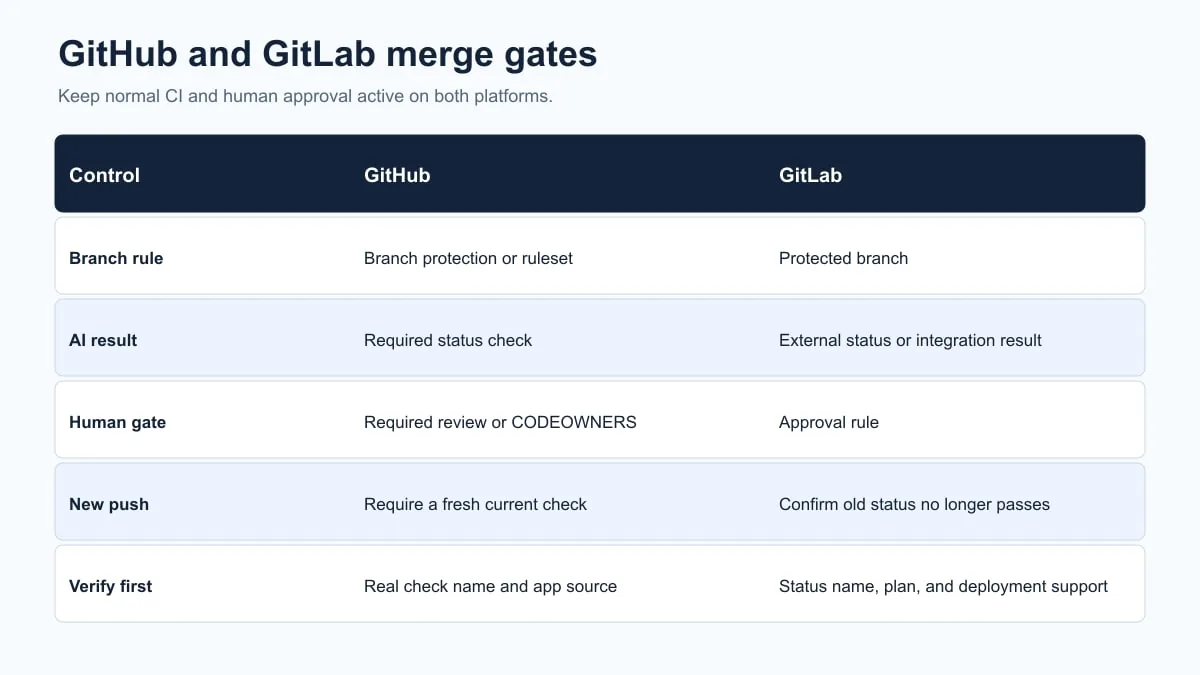
The exact feature set can depend on the GitLab plan and deployment. GitLab’s official docs explain approval rules and external status checks.
Require the AI review on GitLab
- Protect the target branch.
- Keep the normal pipeline required.
- Add the review status check. Do this only after you confirm its live status name. Never copy the GitHub check name by guess.
- Add a human approval rule for the right team.
- Lock the rule. Prevent merge request authors from weakening it when your GitLab plan supports that control.
- Test a new push. Confirm the old review no longer allows a merge.
- Test an outage. See what happens when the review service is offline.
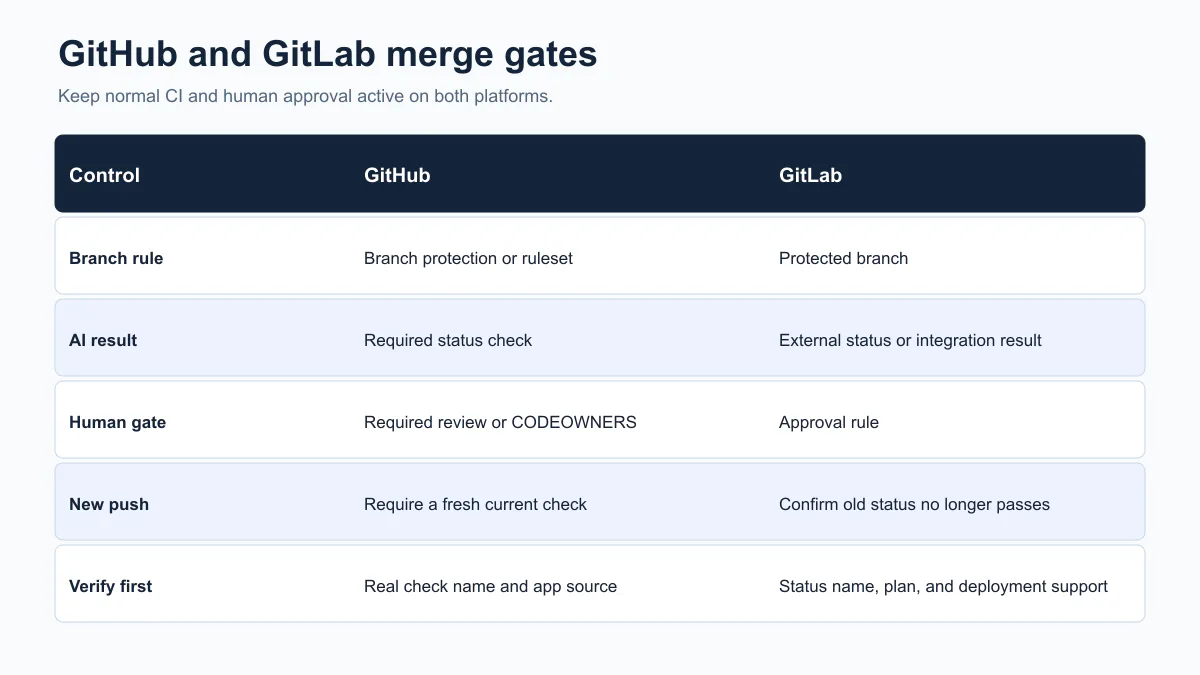
Figure — GitHub has a documented Vera status check; GitLab teams must confirm the live status name and plan controls.
A failed configuration and how to fix it
Failure: The team adds VibeFlow review / main as a required GitHub check. Every pull request is now blocked. The review panel says Waiting for runner.
Cause: The repository setting is on, but no eligible Vera runner is online.
Clear a Waiting for runner block
- Start Vera in the CLI on the linked repository.
- Check the Project review runners setting.
- Confirm the runner is online and allowed to claim the review.
- Re-run the current revision.
- Wait for the check to post a new result.
- Roll back openly if you must merge first. Use your written rollback plan. Do not bypass the gate in secret.
A second common failure is a check that never appears in the branch-rule picker. Run the check once on a test pull request, then return to the rule. Confirm that the result came from the expected app. Similar check names from two apps can create a risky or blocked setup.
Figure — Fix the smallest broken part; do not remove all branch protection to clear one failed AI check.
The bottom line
An AI review comment is helpful. A merge gate is a control.
Start with manual review on one low-risk repository. Prove that the reviewer checks the current commit and reports blockers the repository can enforce, then add the required check on a test branch. Keep a human approval path and a written rollback.
Measure signal, wait time, review rounds, and rollback time. Expand only after the gate works when the reviewer is clean, blocked, stale, and offline. To choose a reviewer first, see the top AI code review tools.
Want a merge gate around every AI review? Try Vera AI code review or request a demo to walk through your rollout.
Frequently Asked Questions
Does Vera replace human code review?
No. Vera gives an evidence-based first pass. People still own design, business intent, risk, and the final merge decision.
Is Vera free?
Yes. Vera is free forever on all Axiom Studio plans, with unlimited reviews and unlimited users. It works with the coding agent the team already uses.
Can Vera review GitHub and GitLab?
Yes. The Vera solution page lists GitHub, GitLab, Bitbucket, and Azure DevOps Repos. The current detailed public merge-gate guide gives the full GitHub flow. Test and confirm the GitLab status flow in your own project.
What if the review runner is offline?
The request can stay in Waiting for runner. Start an eligible runner or use the written rollback plan if the required check is blocking urgent work.
Should every finding block a merge?
No. Use blockers for issues that must be fixed. Keep advice separate. A noisy gate teaches people to bypass it.
How do I make AI code review a required check on GitHub?
Run one manual Vera review first so the check appears. Then add the VibeFlow review check for your base branch, such as VibeFlow review / main, as a required status check in branch protection or a repository ruleset, with the VibeFlow GitHub App as the source. Keep normal CI and human approval required too.
How do I add an AI review gate in GitLab?
Protect the target branch, keep the pipeline required, and add a human approval rule. Add the VibeFlow review result as an external status check only after you confirm its live status name in a test merge request.
Written by
Axiom Studio